

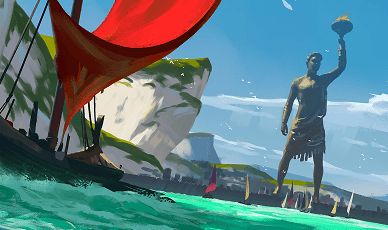

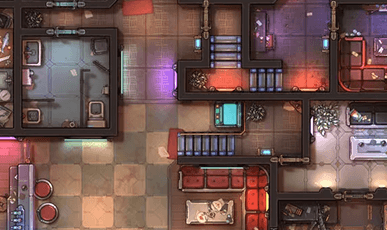


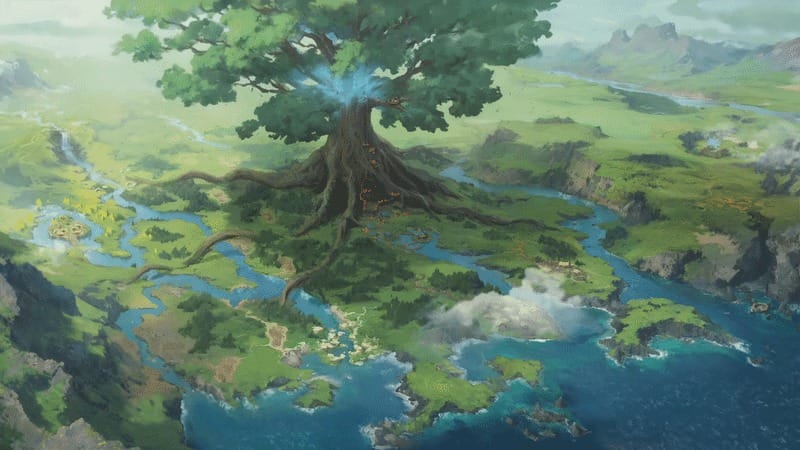
Vistas are illustrations of unique fantasy regions, featuring the locations of multiple related maps and scenes in a single panoramic view.
Each of our Vistas can be viewed in our interactive tool, making it easy to explore the region in more detail. Each pin in the viewer corresponds to a specific location in the Czepeku library, and clicking through takes you directly to that location’s full map page, along with any scenes and tokens tied to it.
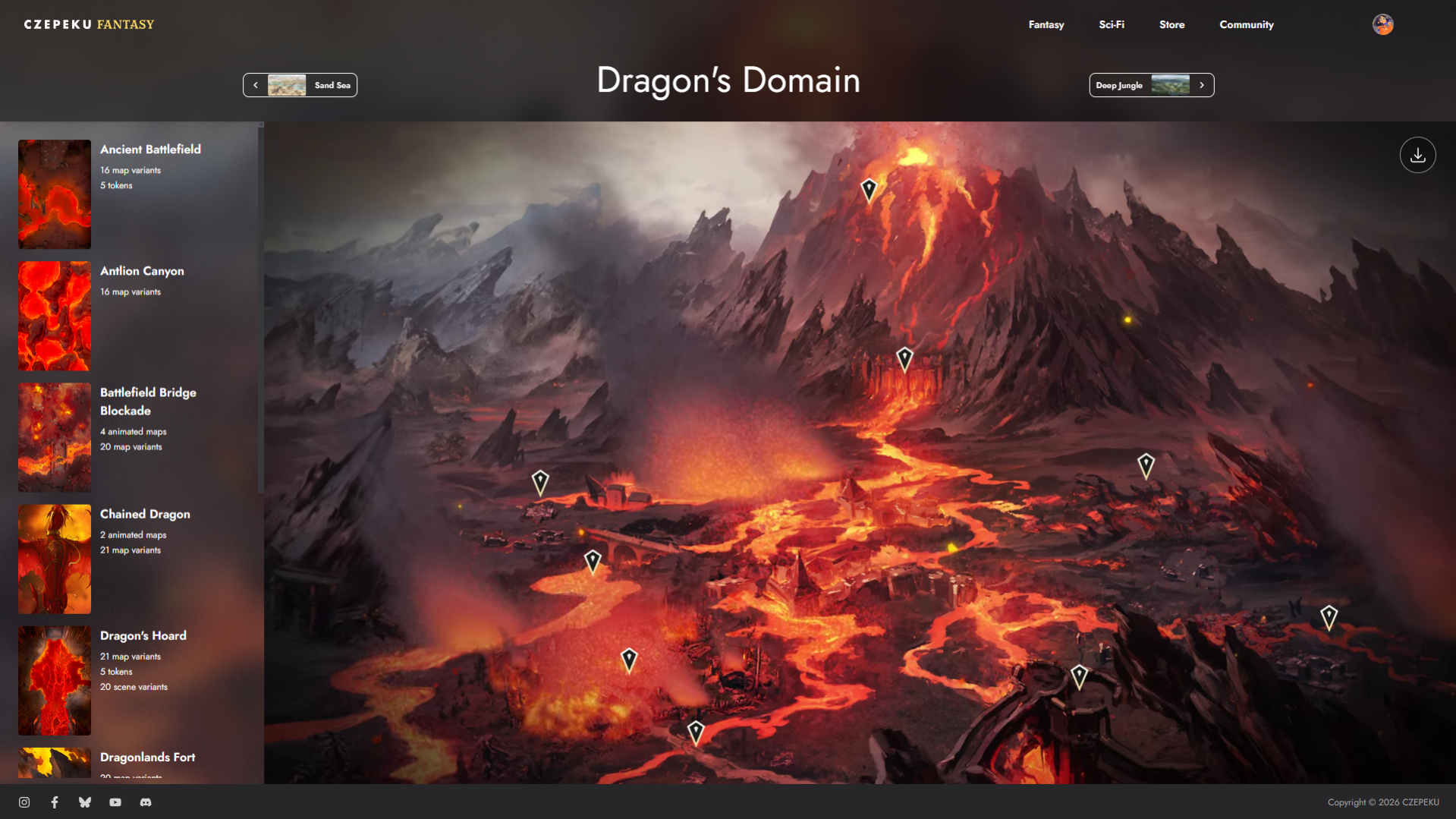
Instead of digging through the library one map at a time when your players reach a desert or rainforest, you can pull up the matching vista and find similar or linked maps already grouped together in one place, cutting your prep time down significantly.
Vistas are also a great table tool—pull one up to show your players an accurate, beautifully illustrated view of the region they’re exploring.
Browsing Vistas
To get to the Vista gallery, head to the Fantasy Scenes gallery page.
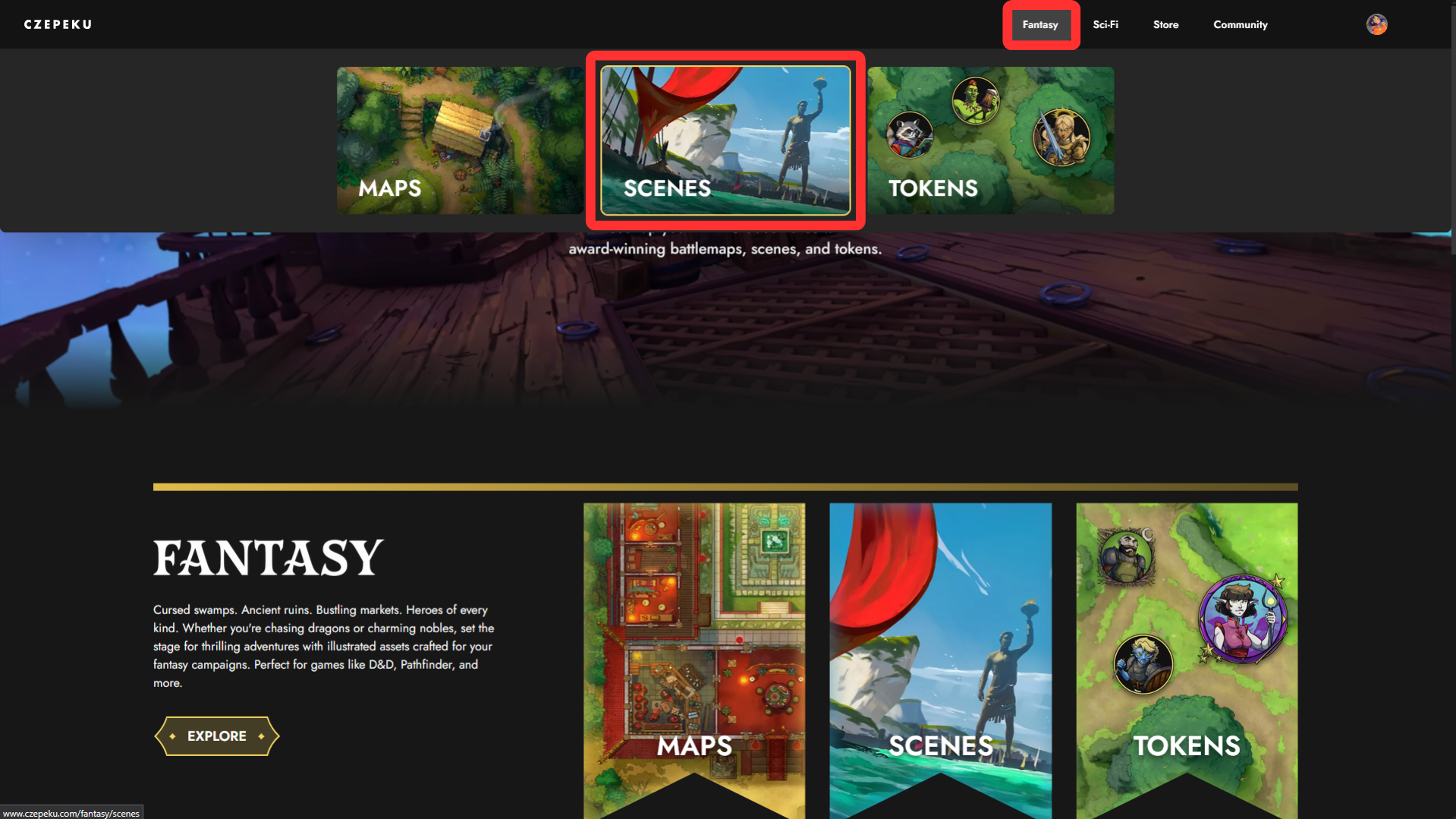
Then click the Vistas button in the top right corner.
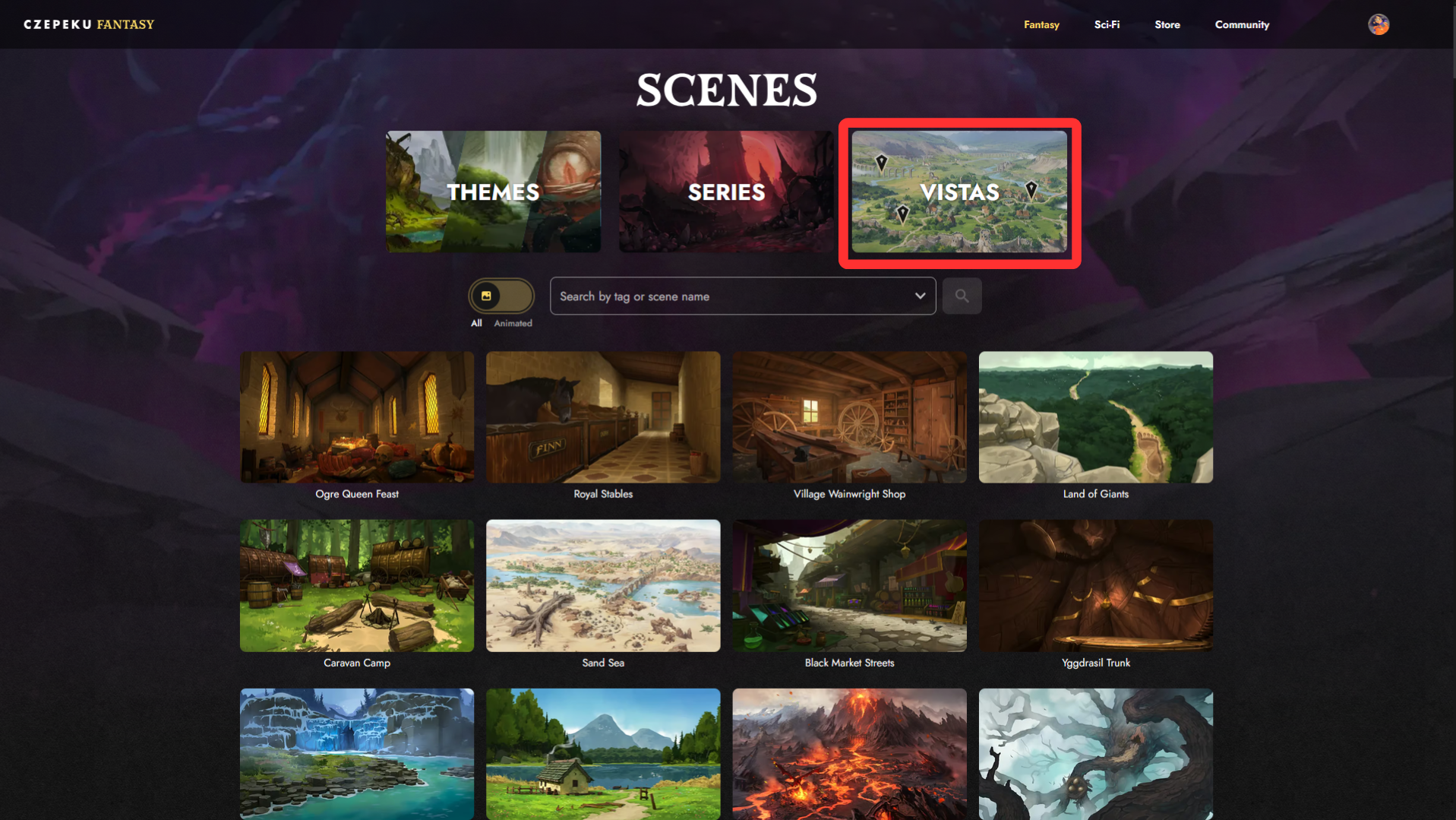
From here, you can click any thumbnail in the gallery to open that vista.
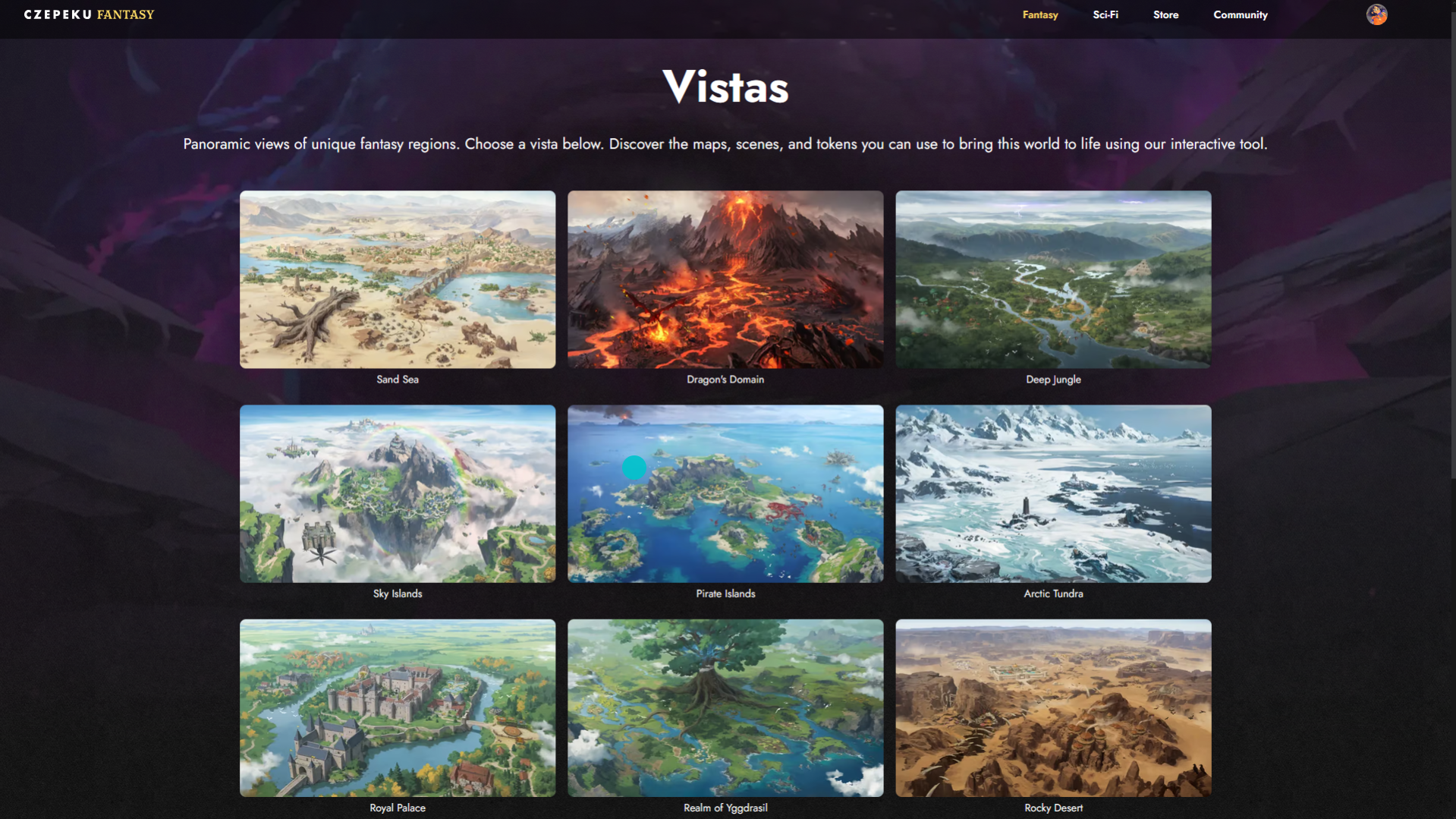
Navigating a Vista
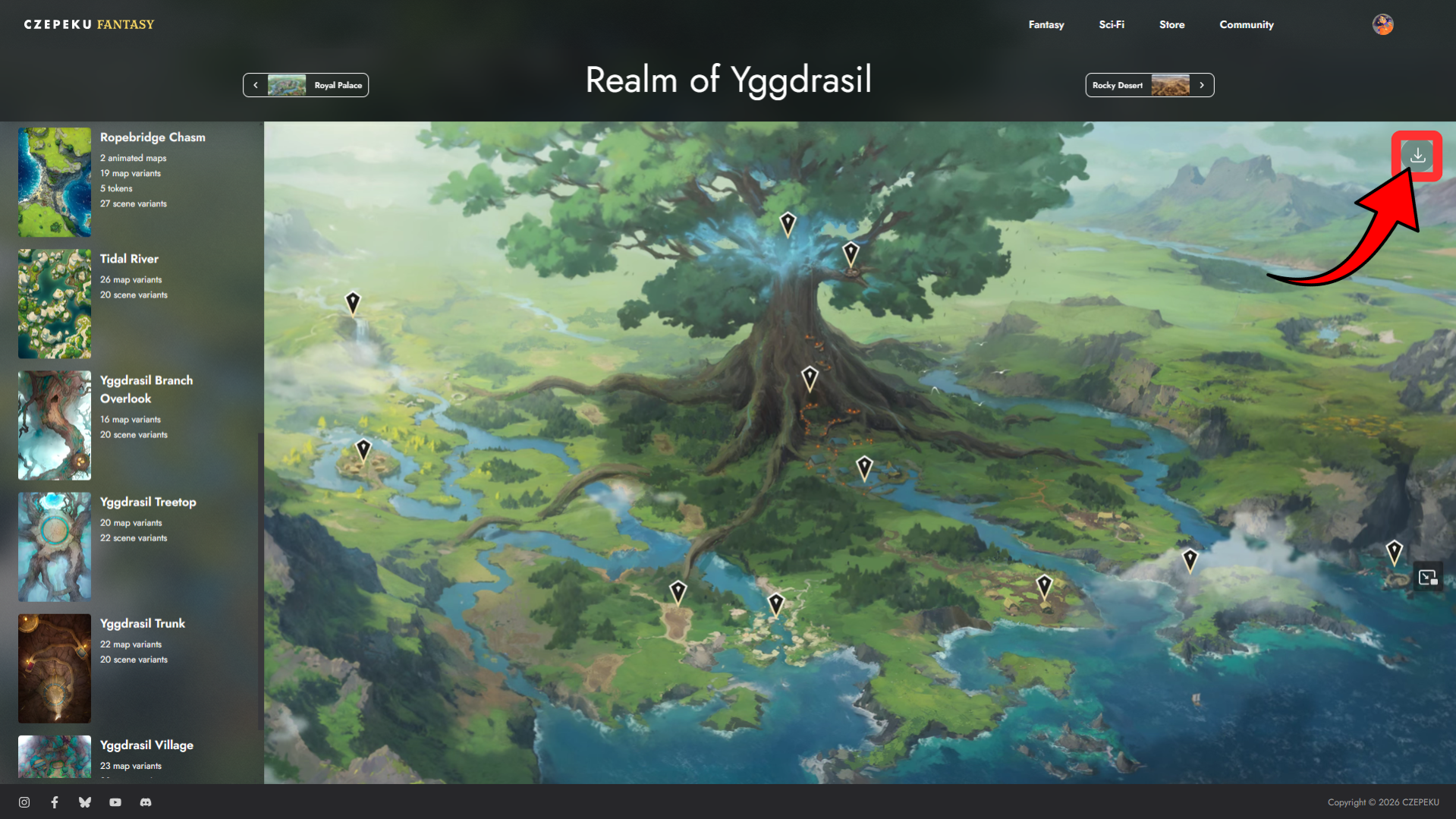
Each vista page features a large illustrated view of the region, dotted with location pins marking where specific maps and scenes can be found.
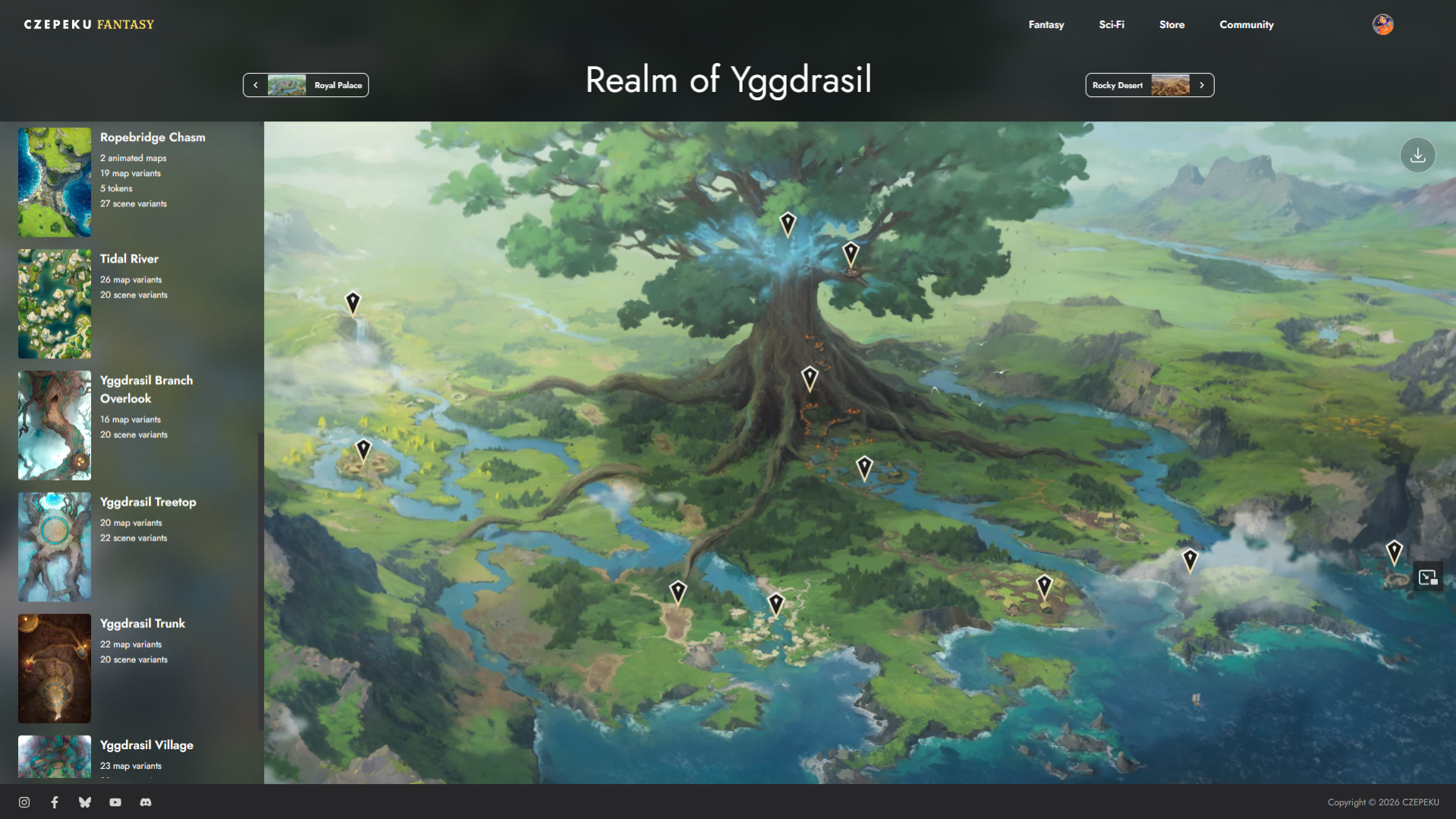
Hovering or clicking a pin opens a small preview of that location’s map. From there, click Visit Map to visit the full map page.
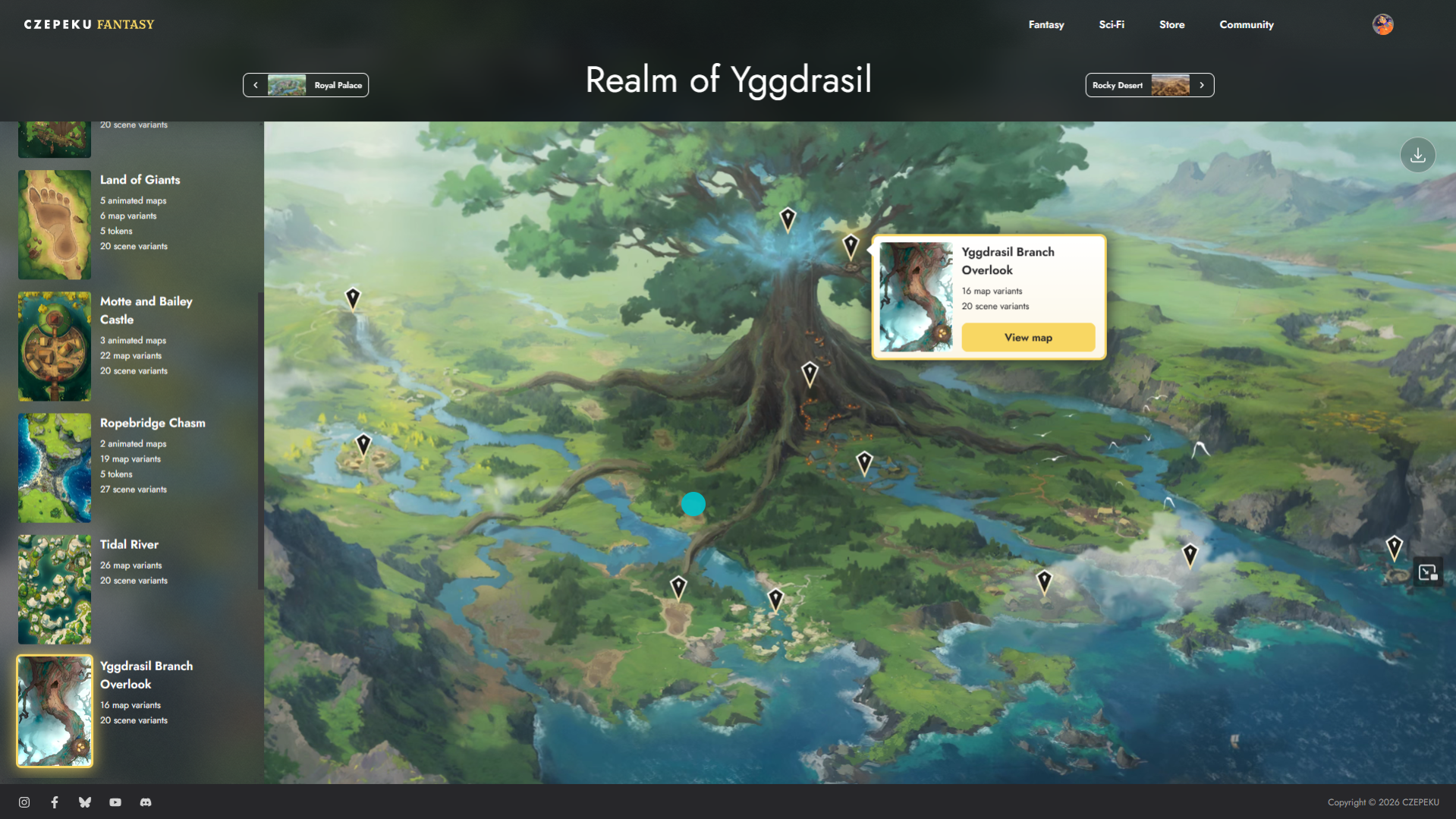
The left-hand panel lists every location in the vista, along with how many map and scene variants each one has. Clicking a location highlights its pin and opens the same preview as above.
Downloading a Vista
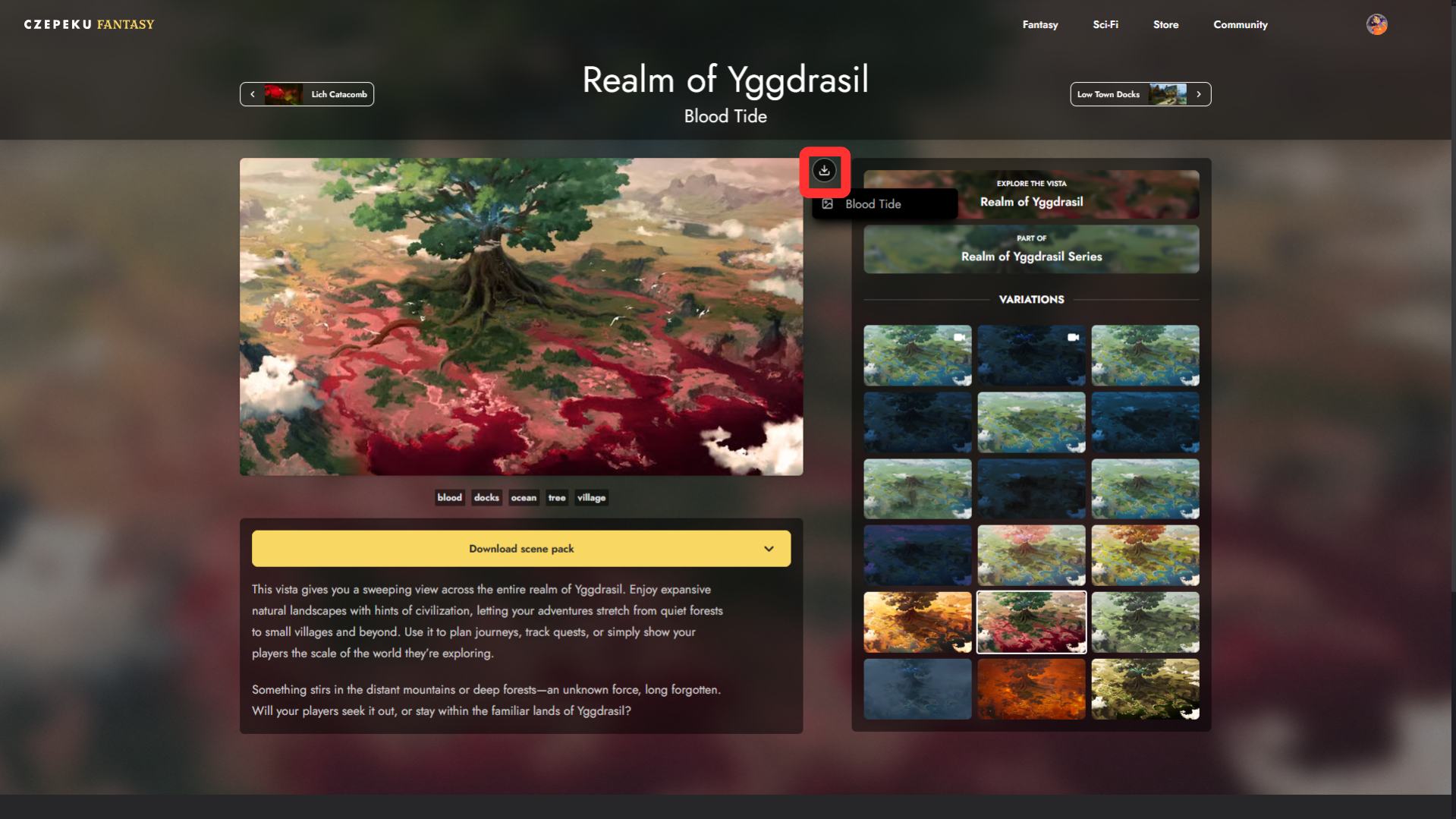
Vistas count as scenes in the Czepeku library, which means each one has its own dedicated scene page where you can browse all of its variations and download the one you want. Like most scenes, vistas typically come with both an animated day and night variant.
To download a vista, first click the download button on the right side of the vista page.
This takes you to the vista’s scene page, where you can pick the variation you want and click the download button next to the image to save it.
Once you have the files you need, it's time to bring it to your table!