



Each map on the Czepeku website has its own dedicated page, where you can preview every variation, download files, and find related maps.
Map Preview
The large image in the center of the page shows your selected variation.
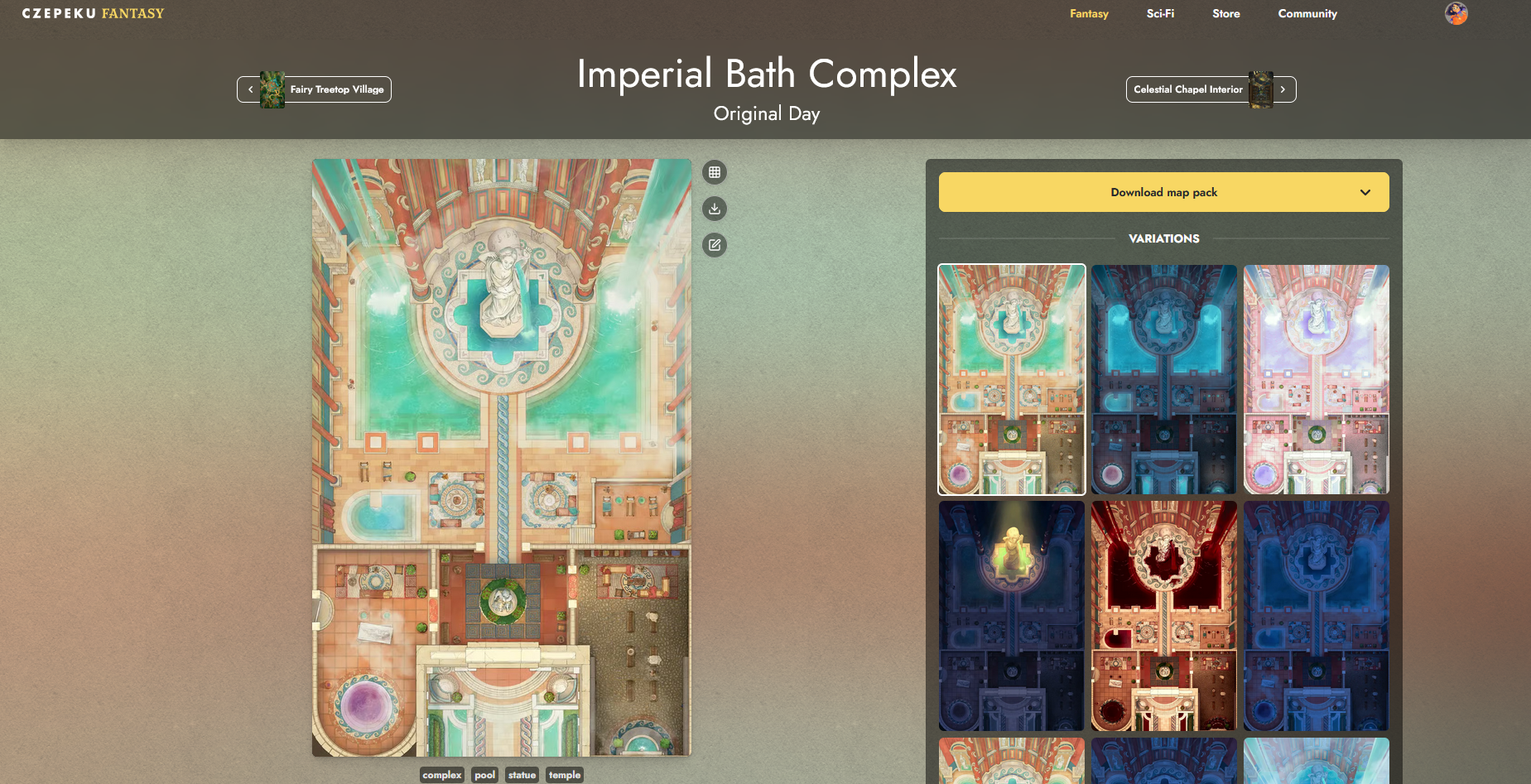
The name of the selected version appears as a subtitle beneath the map title at the top of the page
Variations
The panel on the right shows all available variations as thumbnail previews.
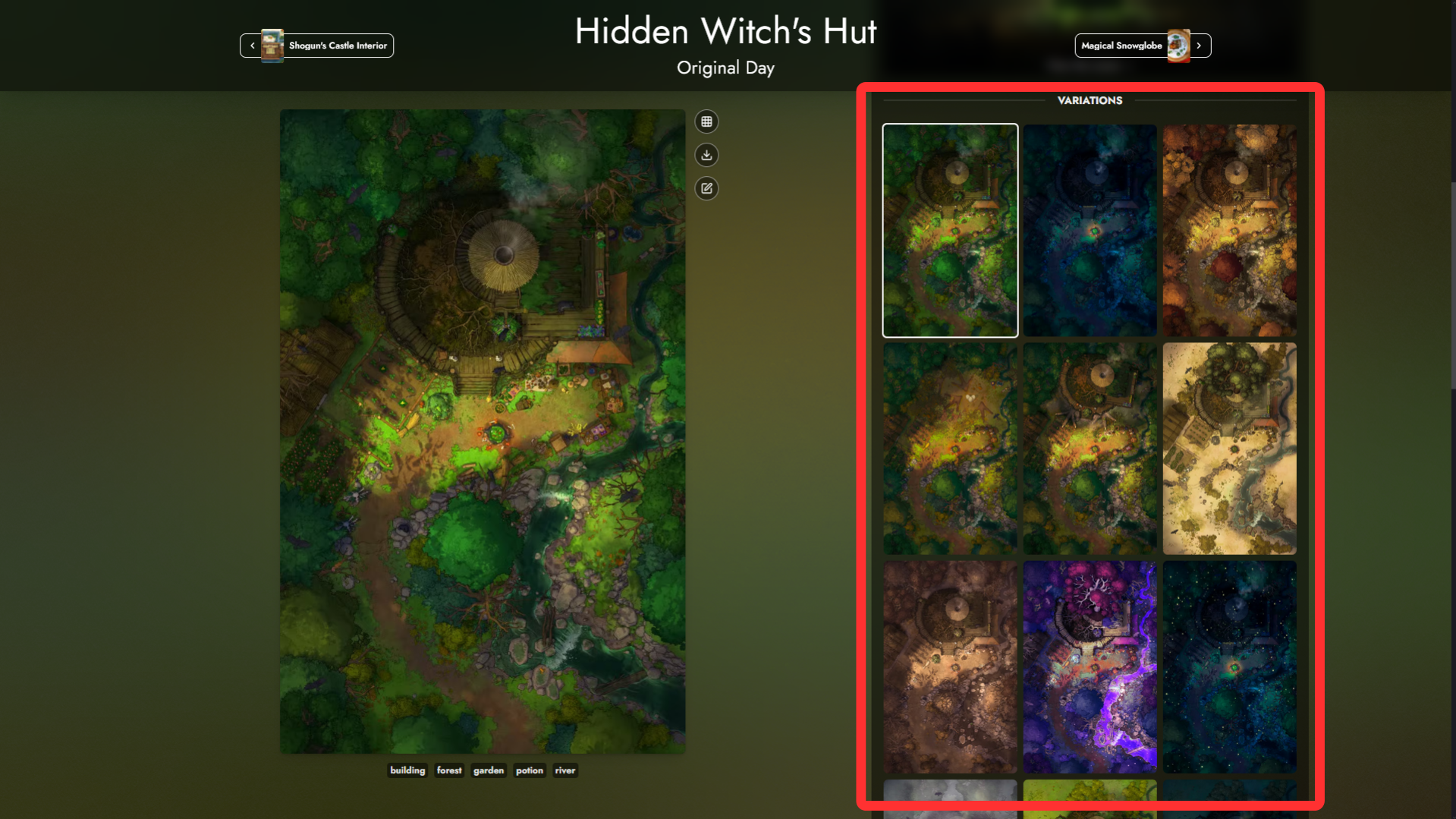
Click any thumbnail to load it in the main preview. Variations include different times of day, weather conditions, seasonal changes, and other creative riffs on the base map.
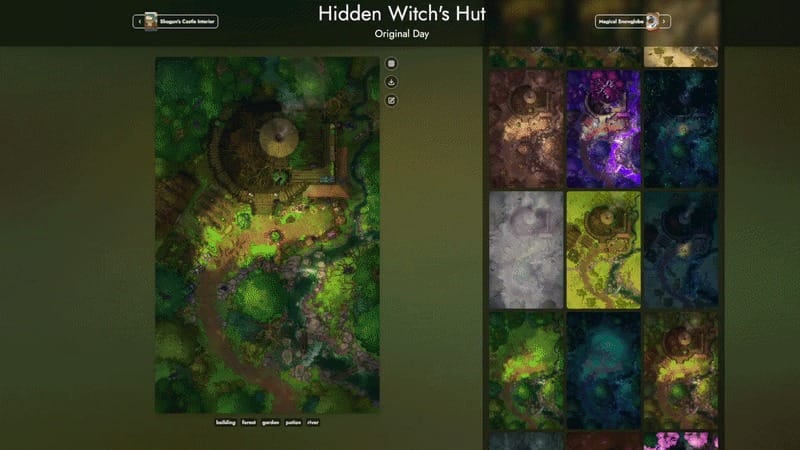
Preview & VTT Options
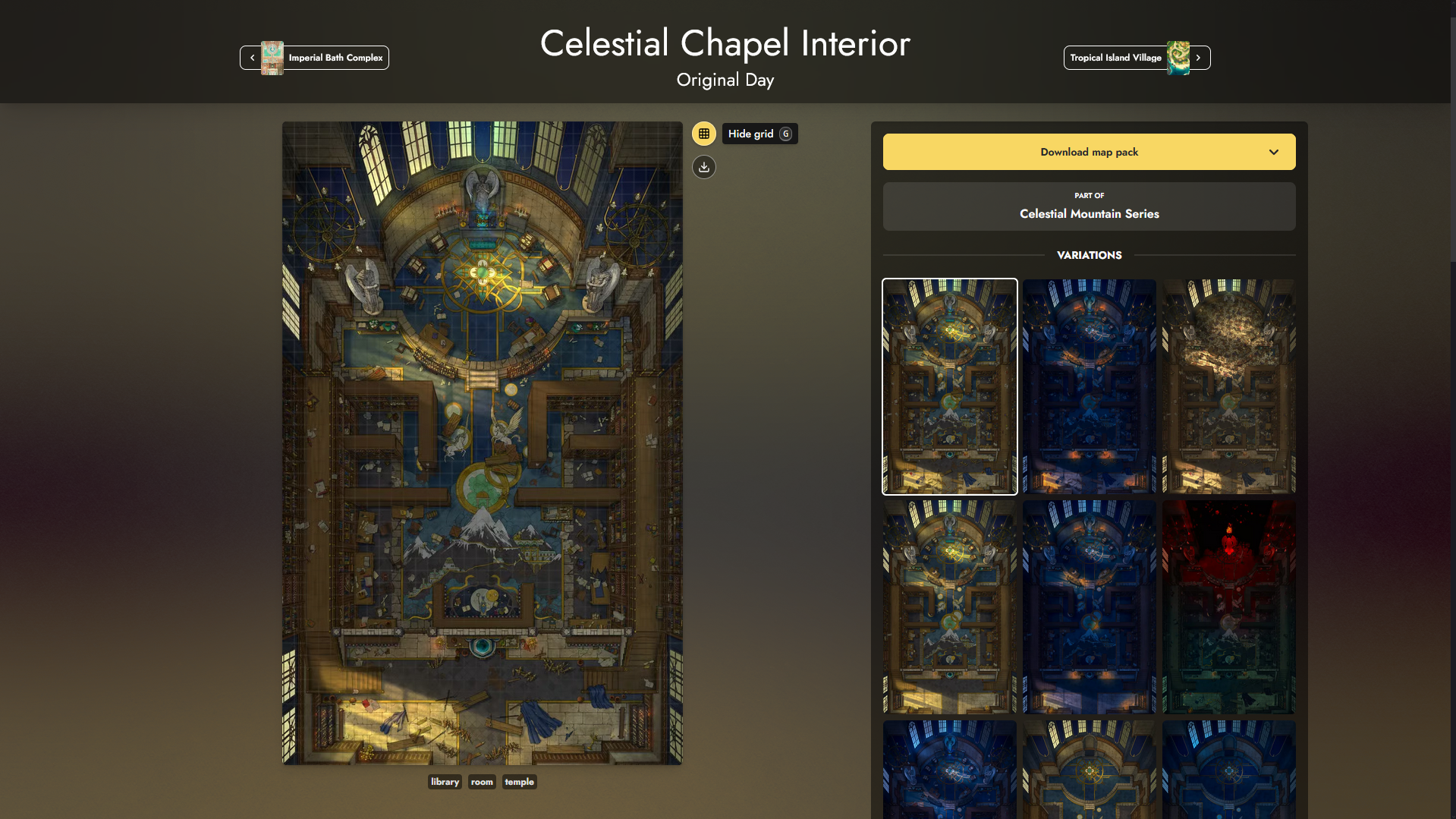
Up to four circular buttons may sit alongside the top right edge of the main map preview.
Grid Control
The grid button toggles a grid overlay on and off, so you can see how it looks on the map before downloading.
Download Specific Variations & VTT Files
The download button allows you to download the specific variation you’re previewing. From here you can:
- Download the image file of your selected variation by clicking on the name of the file.
- Download a VTT ready file for use with Owlbear Rodeo, EncounterPlus, or Roll20.
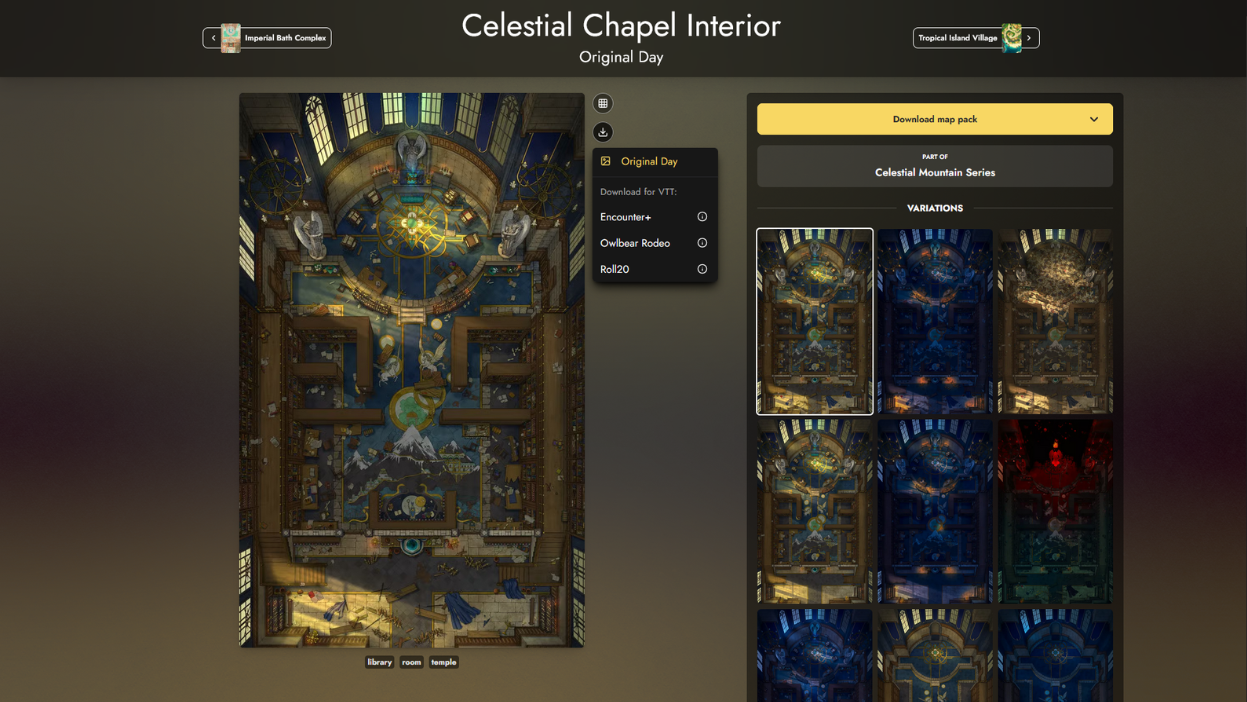
New to UVTTs? We have written guides on how to use Universal VTT files with each platform. Click the name of the VTT above to visit the relevant guide.
Animated Maps
Some maps include animated variants.
When you’re viewing a map with an animated variant, two additional controls appear alongside the preview buttons: a pause/play button to stop or resume the animation, and options to switch between the available animated versions.
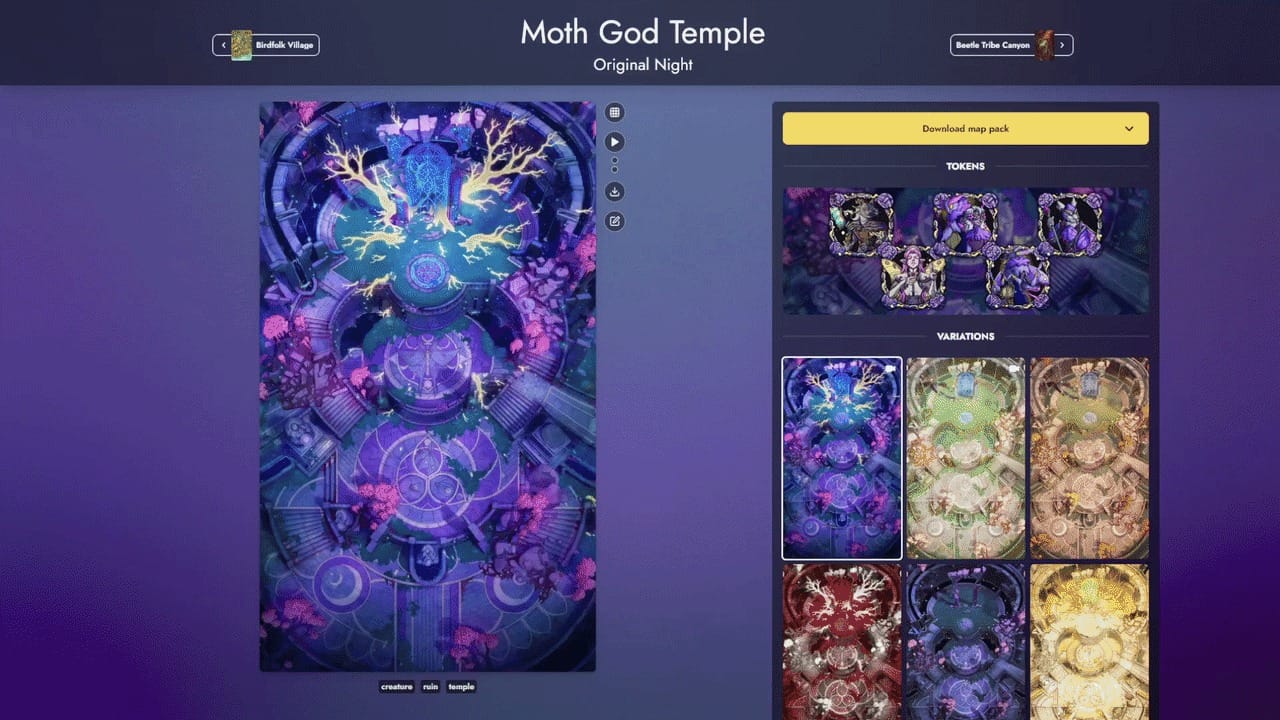
Browse our full collection of animated maps here!
Download Map Pack
The yellow Download map pack button on the right panel lets you download a map’s variations in bulk. Click the arrow to expand the options:
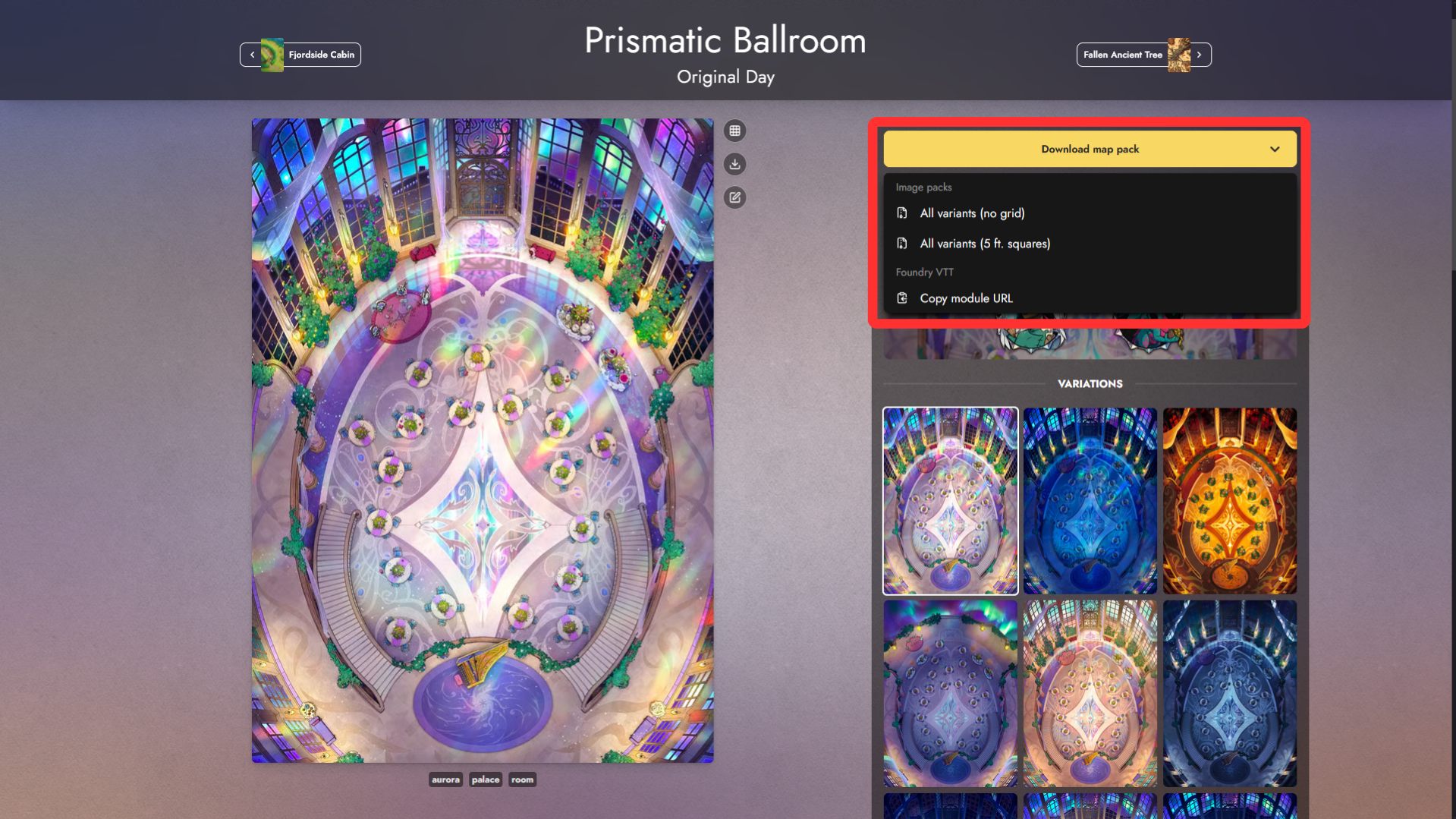
- Download a .zip file of all map variants without a grid
- Download a .zip file of all variants with a 5ft square grid
- Copy the module URL for Foundry VTT, which gives you a URL you can paste into the Manifest URL field when installing a module manually in Foundry.
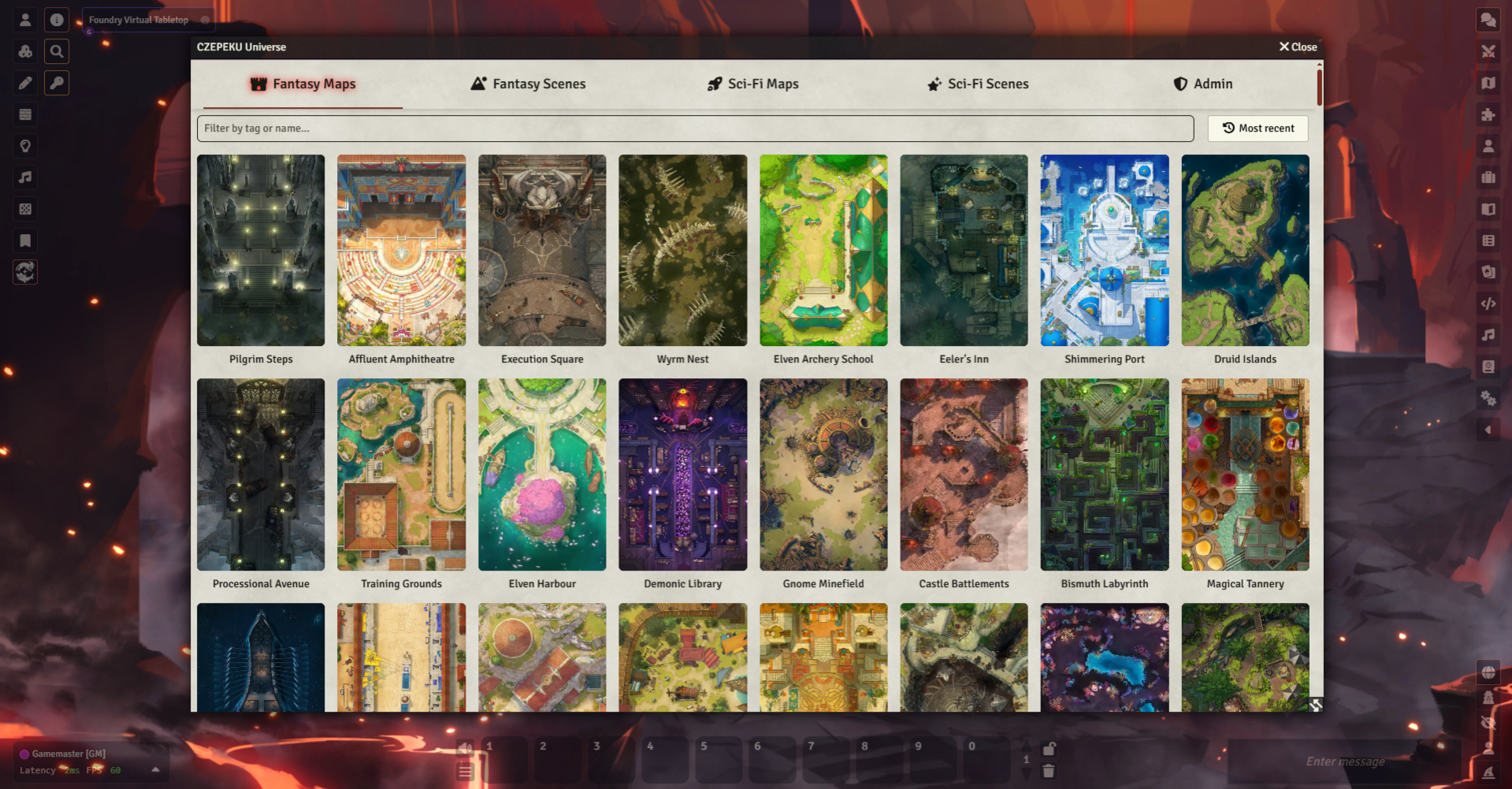
For most Foundry users, we recommend installing the Czepeku Universe module instead, which gives you access to our full map library with a single click. Our full Czepeku Universe module guide can be found here.
Scenes & Vistas
Some maps come with an associated scene or vista. If available, you’ll see a banner on the map page. Click it to visit the scene page.
Part of a Series
Some maps belong to a thematic collection. When a map is part of a series, a banner appears below the “Download map pack” button showing the series name and preview.
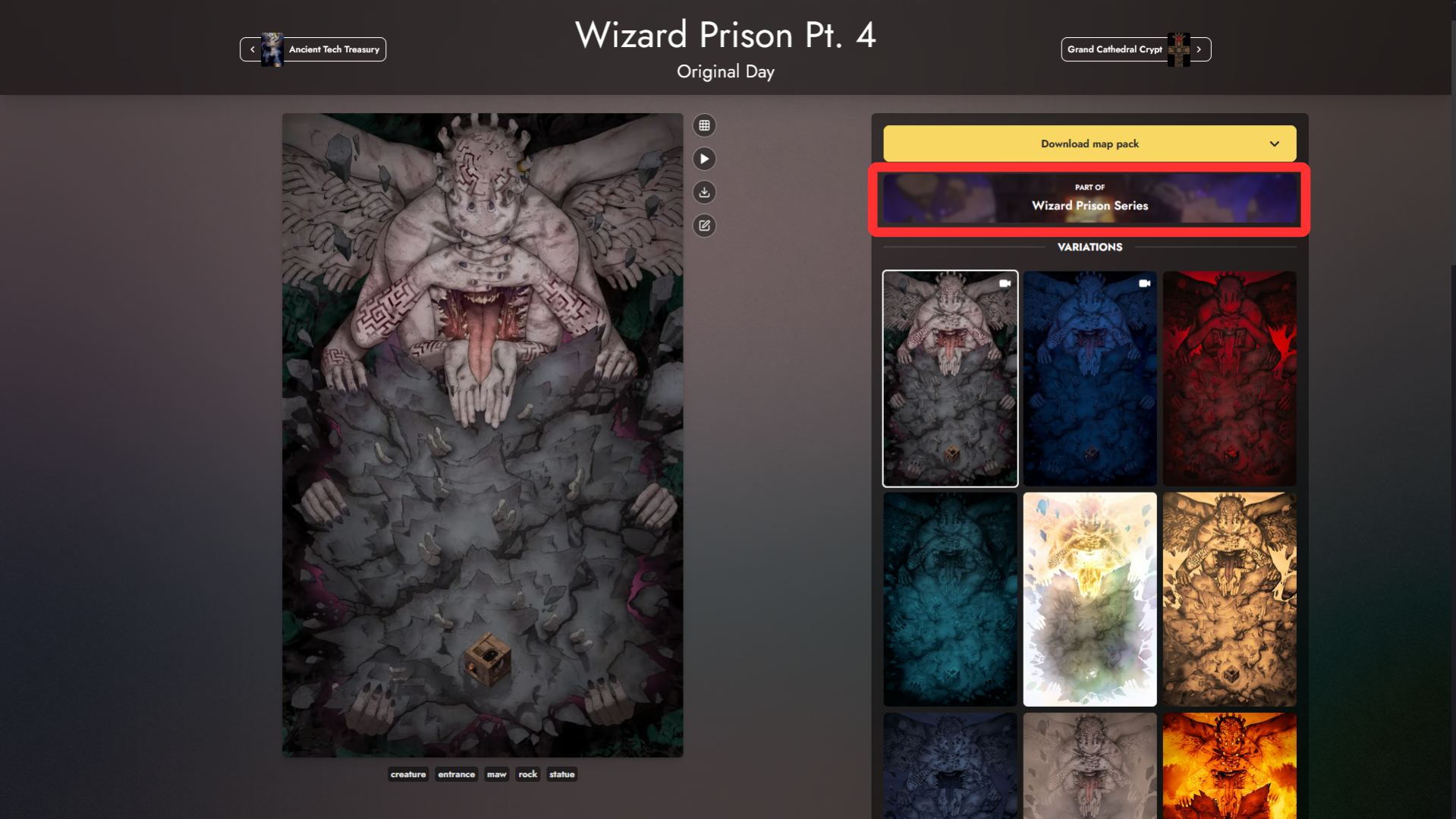
Click it to browse the other maps in that collection.
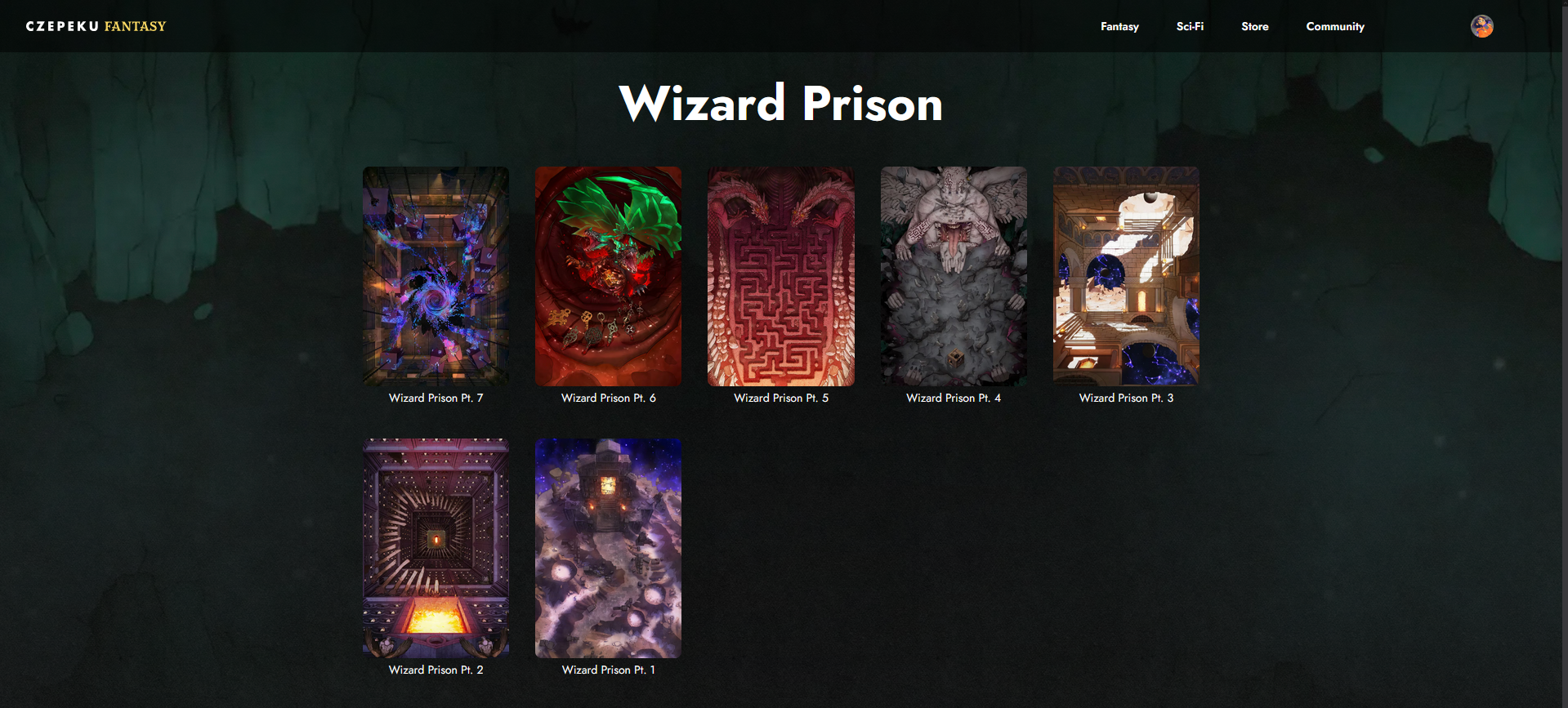
A full gallery of all our map series can be found here, covering everything from city centers and harbor districts to idyllic starting villages.
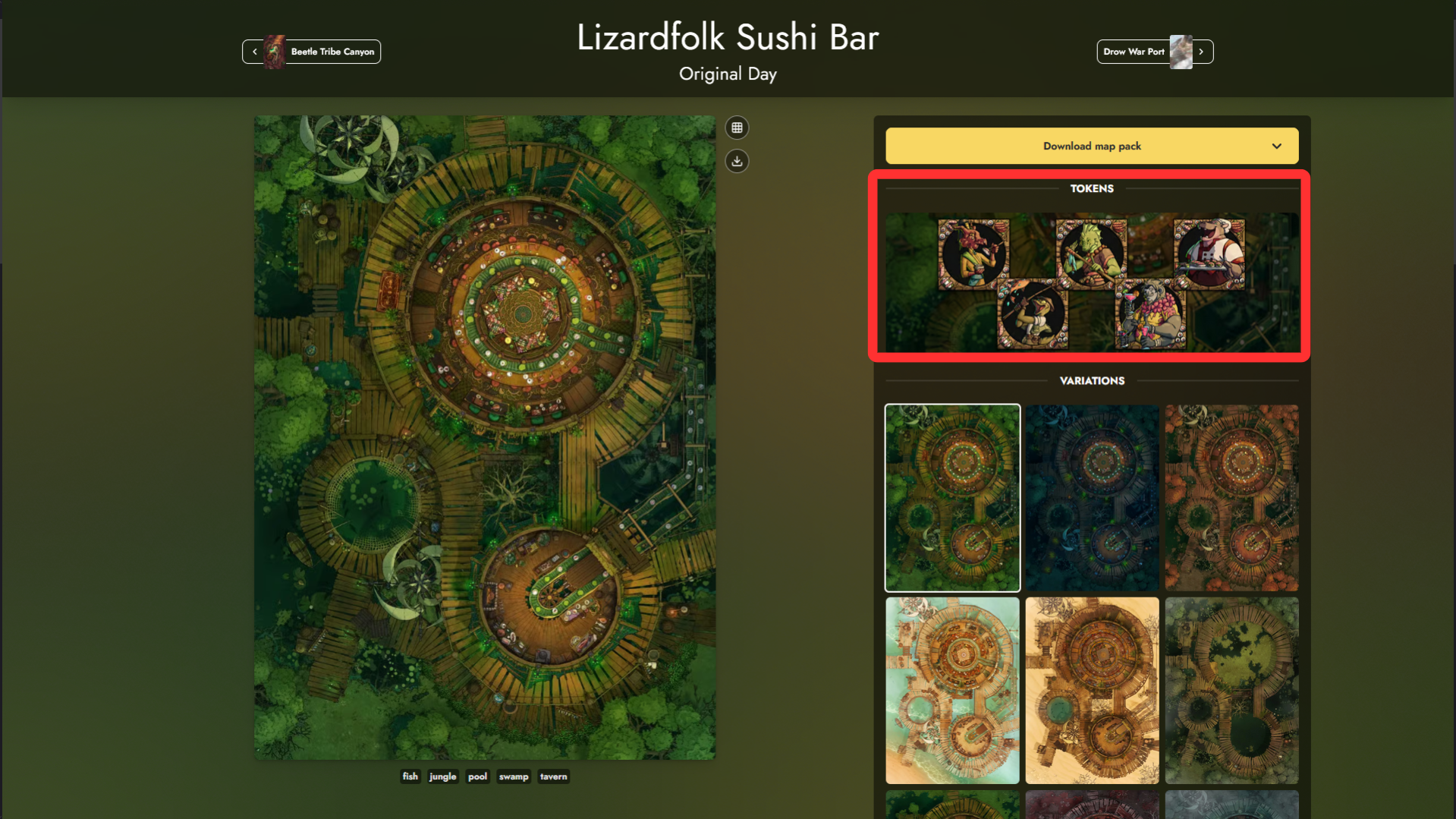
Tokens
Some maps include a curated set of tokens that pair well with the encounter. When available, a Tokens section appears above the Variations panel. Click the token preview to go to the associated token collection.
Tags
At the bottom of the page, the map is tagged with general themes such as dungeon, forest, tavern, and the like.
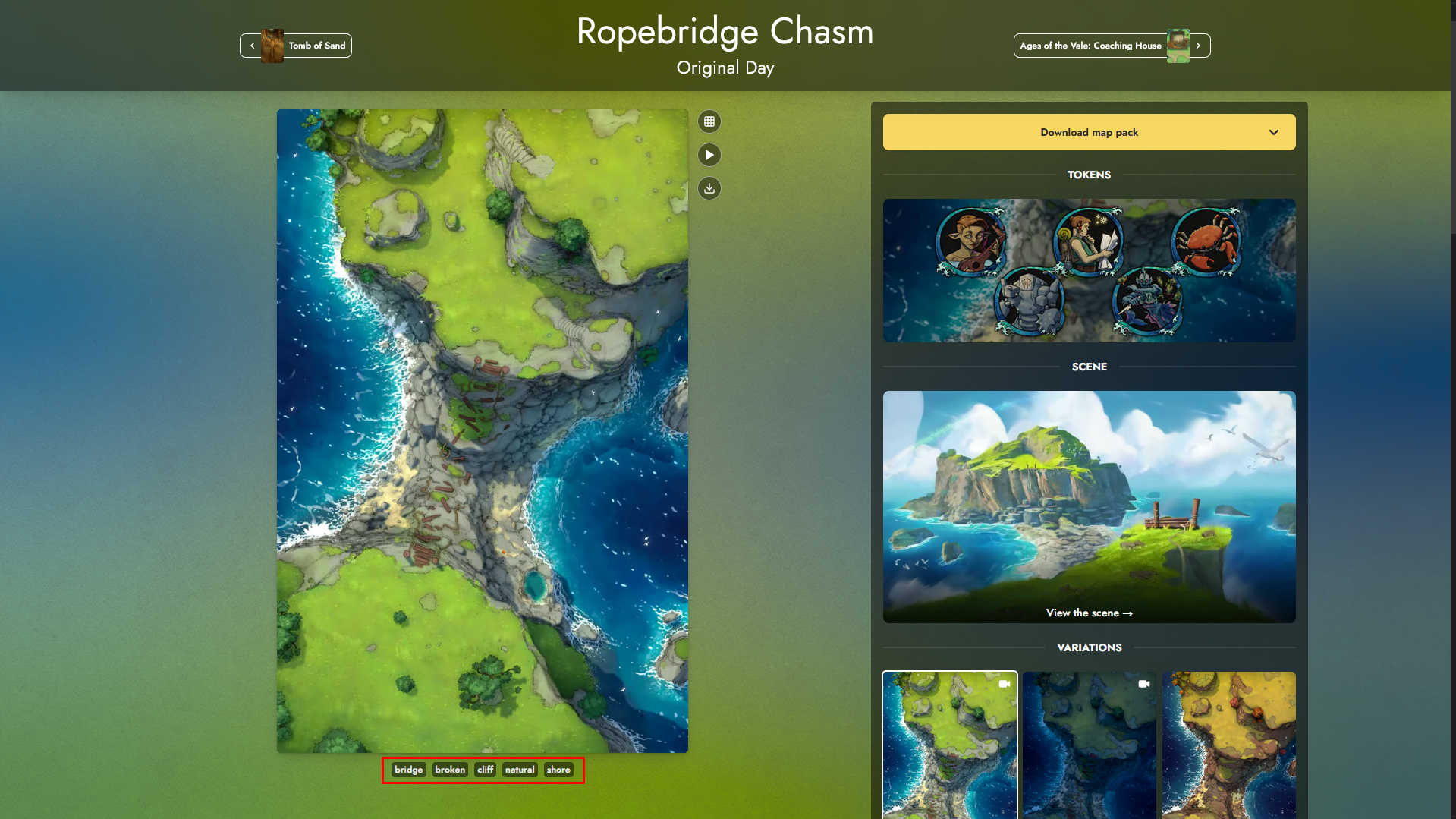
Click a tag to browse other maps that share it.
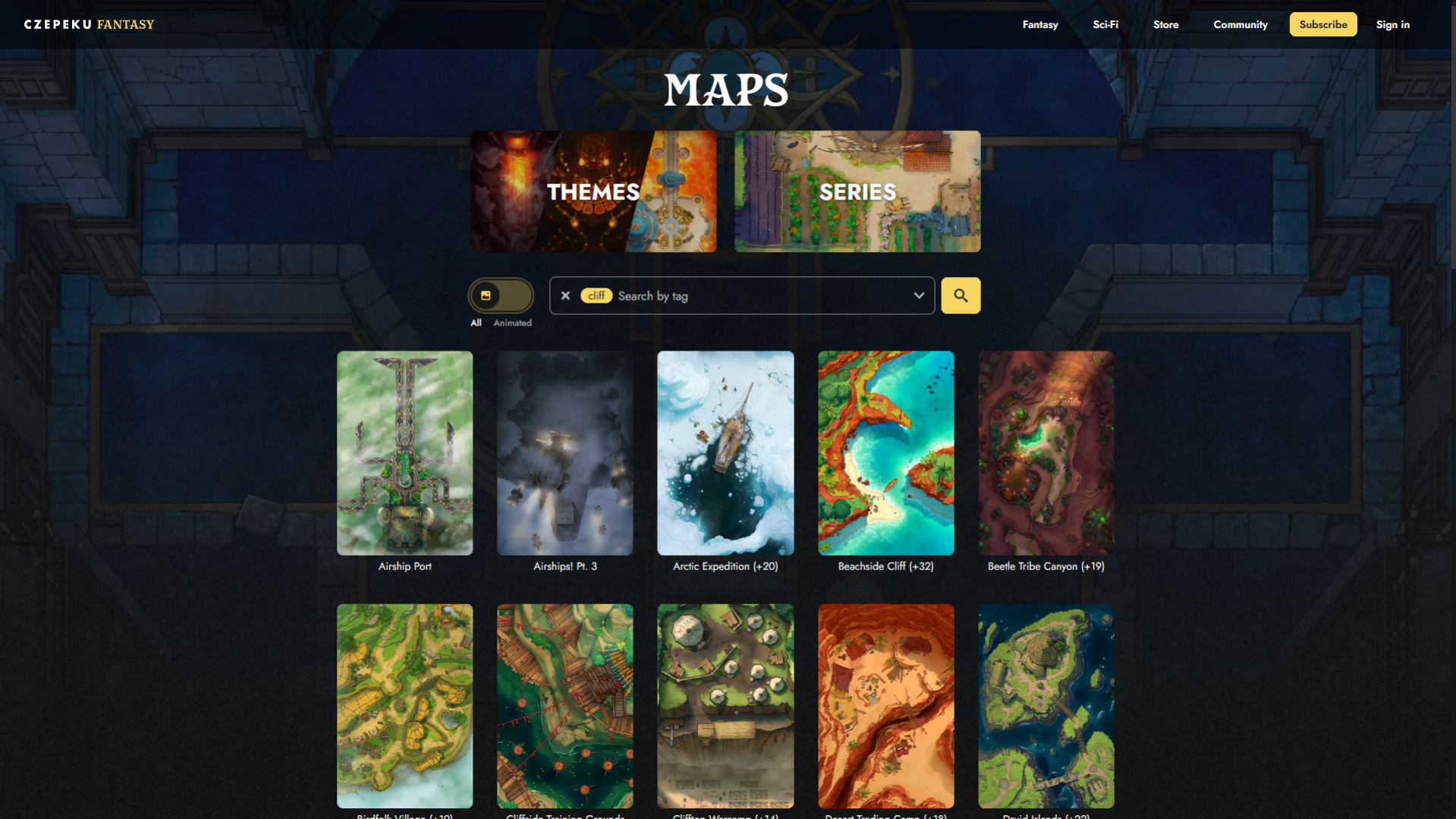
For more about searching with tags, check out our article about how you can find the map, scenes, or tokens you need on our website.
And that's it!
You can learn more about our Fantasy Gallery page here.